 GreatPing
Set up the app
Install GreatPing on your phone or tablet, create your account and turn on notifications.
The GreatPing app runs on iPhone, iPad and Android phones and tablets. Your first device creates your account; every device after it joins that account.
Private testing
GreatPing is not in the App Store or Google Play yet. Write to hello@greatping.com to join the test, and you get an invitation for TestFlight or Google Play.
First launch
Get started
Open GreatPing and tap Get Started. Already have GreatPing on another phone or tablet? Tap I Already Use GreatPing instead and follow Add a device: the new device joins your existing account.
Choose whether to share usage data
GreatPing asks whether you want to help improve it by sharing how the app is used: which screens open, what fails, how long things take. It never includes your code, prompts, alerts or answers, and sessions are not recorded. Tap Share or Don't Share; you can change it later in Settings › Privacy, and the choice applies to all your devices.
Your account is created
There is no email, password or phone number. The device creates its own keys and becomes the first member of your account. That also means there is nothing to recover if you lose every device; see Your account.
Connect a computer
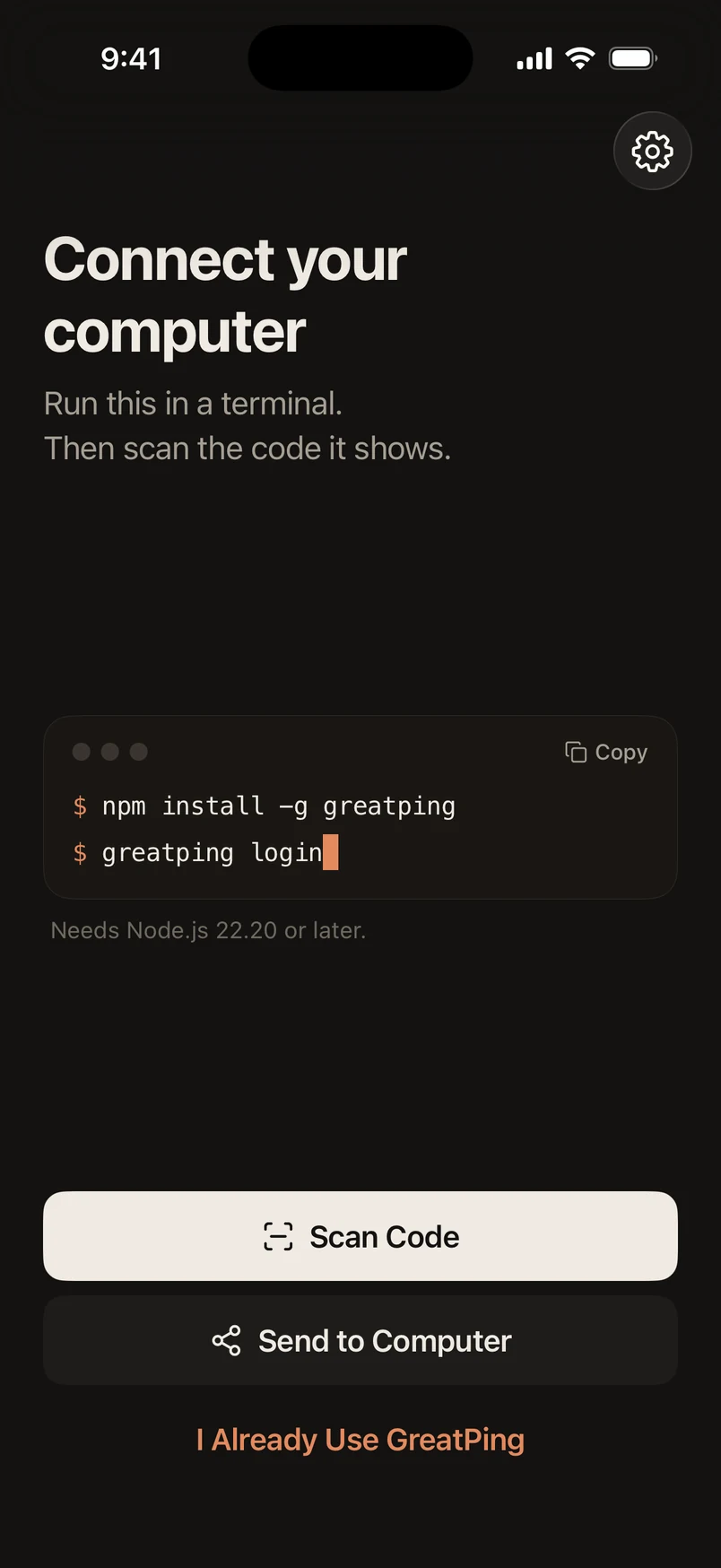
The app shows how to pair your first computer: install the command line tool and run greatping login. Scan the QR code it prints, or type its code. The full walkthrough is in the Quick start.
Turn on notifications
After the first computer is paired, GreatPing asks to send notifications. Tap Turn On Notifications and allow them in the system prompt. Then tap Send Test Alert: a notification should appear at the top of the screen within a few seconds.
If you skipped notifications
Alerts still appear in the inbox, but the device does not notify you. The inbox shows Notifications are off with a button to turn them on. If you declined the system prompt, the button opens the system settings, where you allow notifications for GreatPing.
On iPhone you can also allow Time Sensitive Notifications in the system settings. GreatPing uses them for reminders, so a reminder can reach you while a Focus is on. See Notification settings.
Appearance
Settings › Appearance switches between System, Light and Dark. System follows your phone.
Updates
GreatPing updates itself in the background. When a new version is ready, the inbox shows A new version is ready; restart the app to use it. Settings also has Check for Updates at the bottom, and tapping the version line copies the version details for support.