 GreatPing
Inbox and history
What the inbox shows, how alerts are ordered, and where finished alerts go.
The inbox is the first screen of the app. It always shows the current state of every computer in your account, and it updates by itself while the app is open: an alert answered on another device or at the computer leaves the list at once.
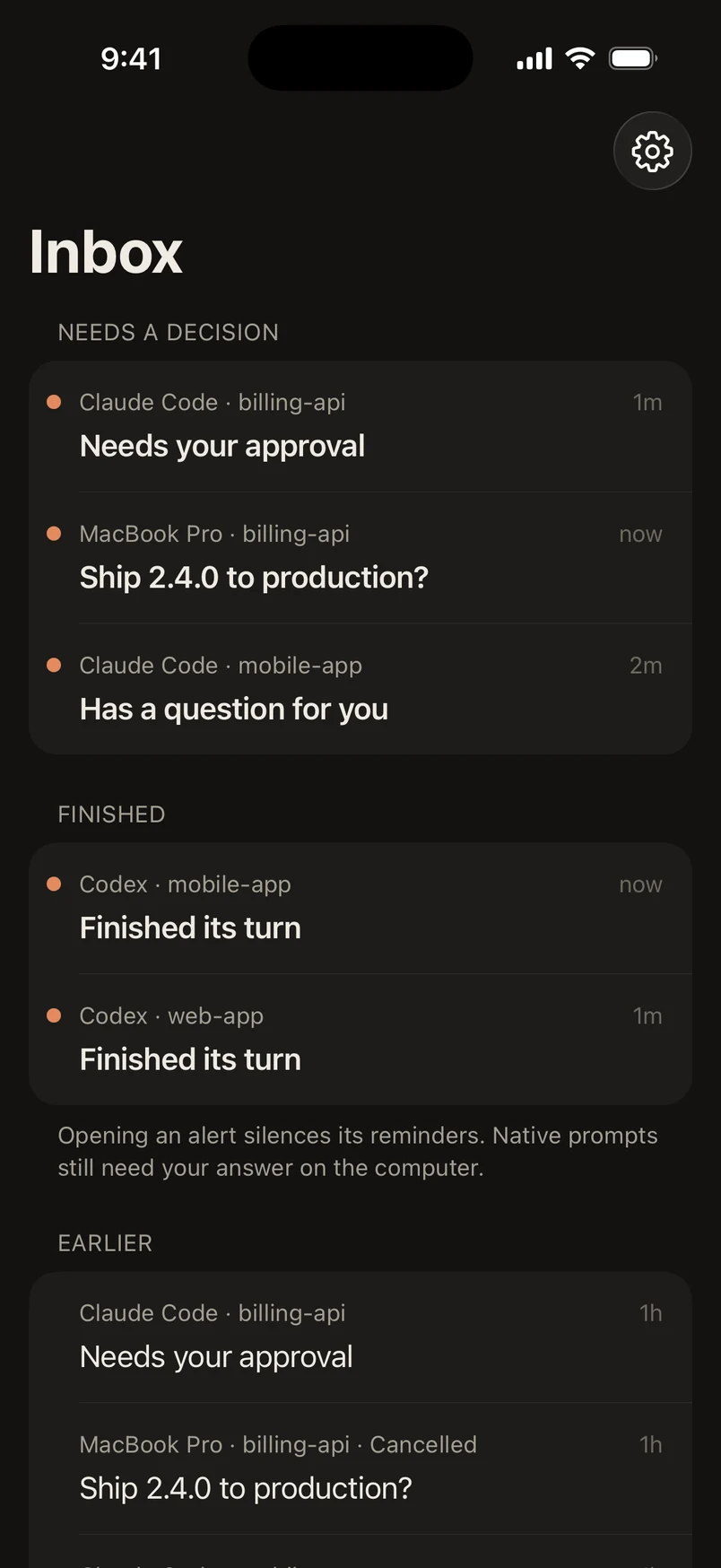
Sections
| Section | What it holds |
|---|---|
| Needs a decision | Agents waiting for your approval or answer, and questions you can answer in the app. Newest first. |
| Finished | Agents that finished their turn and wait for your next message, and messages sent to you. |
| Earlier | The last few alerts that have ended. Show All opens the full history. |
| Computers | Every paired computer, and Pair a Computer. |
When nothing waits for you, the inbox says All clear.
Each row shows where the alert comes from and why, for example "Claude Code · billing-api" and "Needs your approval". A dot marks alerts you have not opened. When your account has more than one computer, rows also name the computer.
Muted alerts
A row marked Muted did not notify this device: the device is set to Off for that computer, or the computer's alerts were paused when it arrived. It is listed so that nothing waits unseen. See Devices and routing.
Opening an alert
Tap a row to open it. Opening an alert tells GreatPing you have seen it: further reminders stop, and the notification is cleared on your other devices. It does not answer or approve anything on the computer. See Alerts and questions.
Touch and hold a row for its menu, for example to copy a message.
Notices at the top
The inbox shows a notice above the list when something needs your attention:
| Notice | Meaning |
|---|---|
| Notifications are off | Alerts still arrive here, but this device does not notify you. Tap Turn On or open the system settings. |
| Notifications paused | You paused this device; it says until when. Tap Resume to end the pause. |
| Can't reach GreatPing | No connection. The inbox shows what it saved and refreshes when it can. |
| A new version is ready | Restart the app to use it. |
| Set up GreatPing again | The account was created by an early test version. See Your account. |
Pull down on the list to refresh it by hand.
More than one computer
With two or more computers, a row of filters appears above the list: All and one per computer. Choose a computer to see only its alerts; Earlier and History follow the same filter.
History
Show All under Earlier opens History: every finished alert of the last 7 days, grouped by day. With a computer selected in the filter, History shows only that computer's alerts.
Finished alerts stay for 7 days. After that their text, project names and answers are deleted from GreatPing, and the alert disappears from the list. If you open an alert whose content was already deleted, the app says so instead of showing it.