 GreatPing
Alerts and questions
What each kind of alert means, what you can do with it on the phone, and how it ends.
GreatPing sends three kinds of alerts. They look alike on the Lock Screen, but what you can do with them is different.
| Kind | Example | Where you answer |
|---|---|---|
| An agent waits | "Claude Code · billing-api", Needs your approval | At the computer, in the agent |
| A question | "Ship 2.4.0 to production?" | In GreatPing, on any of your devices |
| A message | "Deploy finished" | Nothing to answer |
When an agent waits
These alerts come from the hooks that greatping setup installs. They say which agent waits, in which project if you turned project names on, and why:
| Reason | Meaning |
|---|---|
| Needs your approval | The agent wants to run a command or tool and asks for permission. |
| Has a question for you | The agent asks you to choose or answer. |
| Needs your input | A tool or server asks you to fill something in. |
| Finished its turn | The agent is done and waits for your next message. |
| Stopped with an error | The agent stopped because something failed. |
The alert never contains the command, the question or file names: nothing from your prompt leaves the computer.
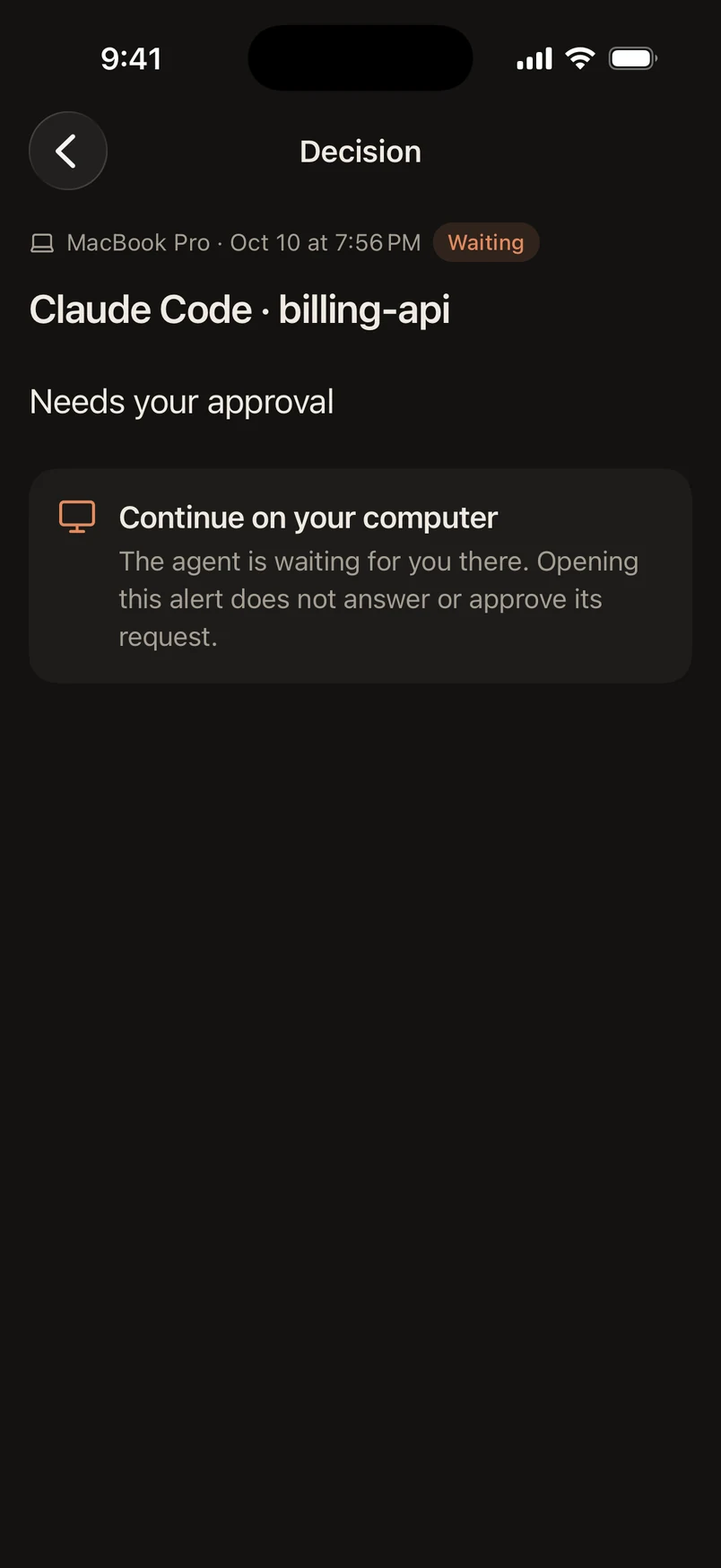
Opening it shows Continue on your computer. GreatPing never approves or answers anything in your agent; it only tells you where to go. Opening the alert stops further reminders and clears the notification on your other devices.
The alert ends by itself when you answer at the computer: when the prompt closes, when you send your next message, or when the agent's turn ends. It then shows Handled on your computer.
Questions
Questions come from greatping ask in a script, or from an agent that uses the ask_user tool. Unlike an agent's prompt, you answer them right in GreatPing.
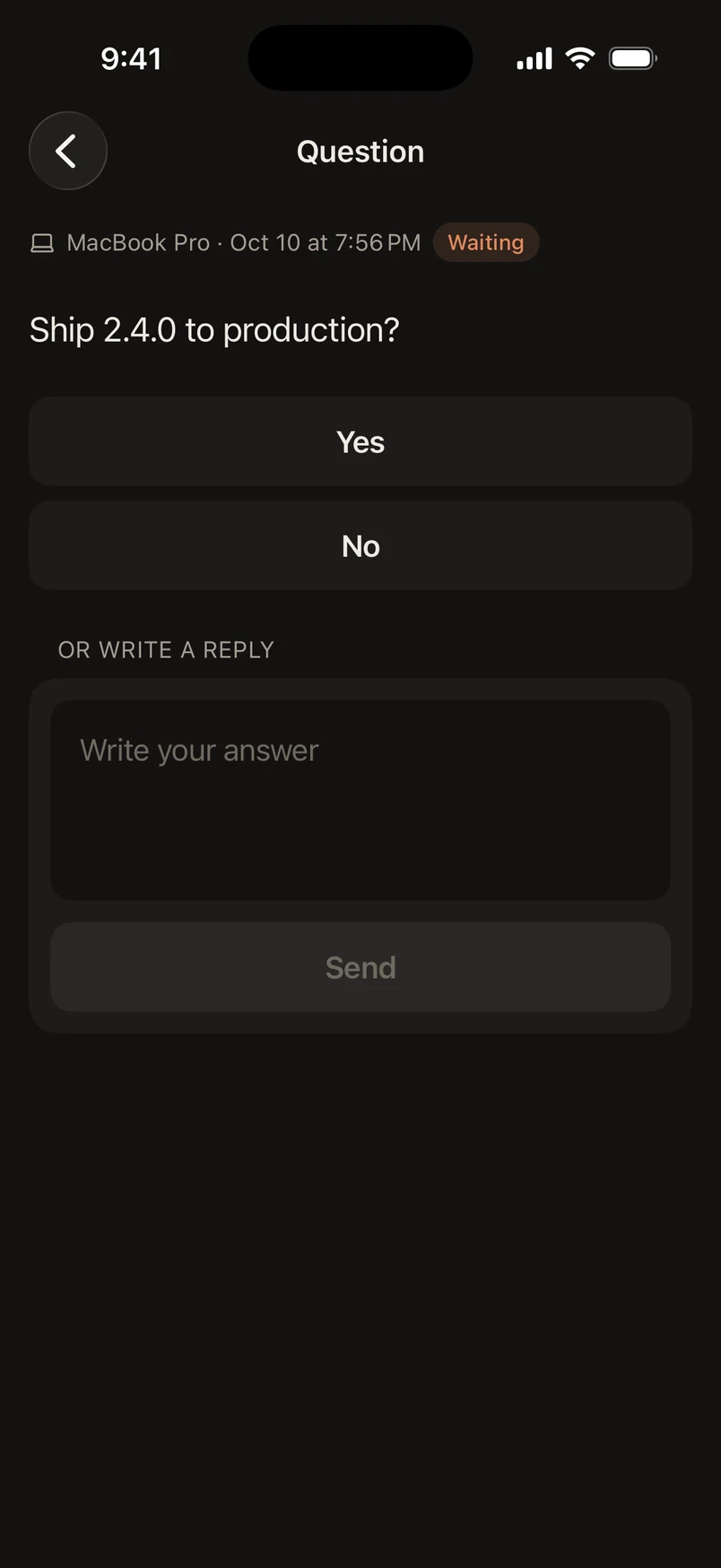
- With choices, tap one. When the question also accepts your own words, a Reply field appears under them.
- Without choices, write your answer and tap Send.
The answer goes back to the computer that asked, and the question shows You answered "…". Your other devices see Answered "…" on and the name of the device you used. Only the first answer counts: if two devices answer at the same moment, the second is told the question was already answered.
An answer is accepted only when it is signed by a device of your account, for this question, and is one of its choices or allowed text. Anything else is refused on the computer.
Answer from the notification
A Yes/No question has Yes and No buttons right on the notification, and Reply when it accepts your own words. Questions that take free text have Reply. Touch and hold the notification (or expand it on Android) to see them. The answer is sent without opening the app; if it cannot be sent, a notification Your answer was not sent tells you to open GreatPing.
These buttons are not offered while the app lock is on, since anyone holding the phone could use them.
Messages
Messages come from greatping notify, from greatping run when a long command ends, or from an agent that uses the notify tool, for example "pnpm test succeeded, Finished in 6m 41s". There is nothing to answer. Their notification has a Pause for 1 Hour button that silences this device for an hour.
How an alert ends
| Shown as | What happened |
|---|---|
| Handled on your computer | You answered the agent at the computer, or it continued. |
| You answered / Answered on | The question got its answer in GreatPing. |
| This request expired | Nobody answered before the question's time ran out. |
| This request was cancelled | The computer withdrew it, for example a script was interrupted. |
Ended alerts move to Earlier and History, and their content is deleted 7 days later. See Inbox and history.
"Could not verify this alert"
The text of every question and message is sealed by the computer for your devices and signed by it. If an alert was not sealed by a computer of your account for this device, or was changed on the way, the app refuses to show its content and says Could not verify this alert. It does not happen in normal use; if you see it, check your computers in Settings and write to support@greatping.com.